
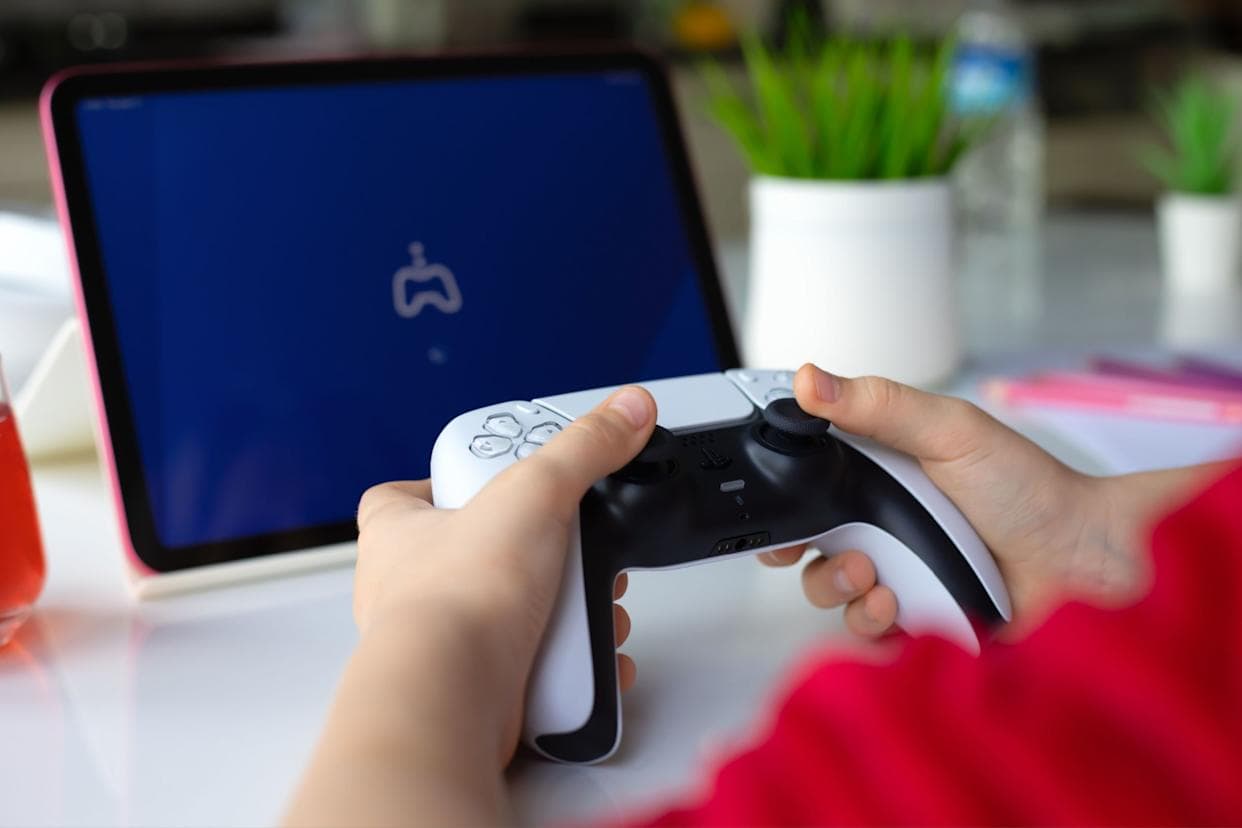
Remote play depends more on your home network than raw internet speed. A fast plan can still feel bad if the console, PC, phone, handheld, or router has a weak local connection.
Use this setup as a practical starting point.
Understand what remote play actually needs
When you stream inside your own house, the video never touches your internet plan. PS Remote Play and Steam Link send frames from the host device to the client device across your local network, so what matters is the quality of the path between those two devices, not the number on a speed test.
Rough bitrate expectations for the stream itself:
| Stream quality | Approximate bandwidth | | --- | --- | | 720p | 5 to 10 Mbps | | 1080p | 15 to 30 Mbps | | 4K (where supported) | 30 to 40+ Mbps |
Almost any modern network can carry those numbers on paper. The real enemies are latency spikes, packet loss, and interference. A network that averages 200 Mbps but stutters for 300 ms every few seconds will feel worse than a clean, boring 40 Mbps link.
That changes only when you stream from outside your home. Then your upload speed at home becomes the ceiling, and on many Indian broadband plans upload is much lower than download. If away-from-home streaming matters to you, check the upload number on your plan, not the headline speed.
Wire the gaming device when possible
If you can connect your PS5, gaming PC, or main streaming host with Ethernet, do it. The stream only feels smooth when the host device sends frames consistently.
Best order of preference:
| Setup | Expected stability | | --- | --- | | Host wired, client on strong Wi-Fi | Best practical setup for most homes | | Host and client wired | Best setup if the client supports Ethernet | | Host on Wi-Fi, client on Wi-Fi | Works, but more sensitive to distance and interference |
For Indian apartments with thick walls or crowded Wi-Fi, wiring the host device can make a bigger difference than buying a faster internet plan.
If running a long Ethernet cable is impossible, a pair of powerline adapters or a mesh node with a wired backhaul port near the console is the next best thing. Both are usually cheaper than replacing the router, and both remove one wireless hop from the path.
Use 5 GHz or 6 GHz for the client
For the phone, tablet, handheld, or laptop receiving the stream, prefer 5 GHz or 6 GHz Wi-Fi when available. These bands usually provide better local speed and lower congestion than 2.4 GHz, but they do not travel through walls as well.
If your room is far from the router, test both:
- 5 GHz or 6 GHz for speed when signal is strong.
- 2.4 GHz only when range is the bigger problem.
If your router broadcasts one combined network name for all bands, check whether the client device is silently falling back to 2.4 GHz at range. Some routers let you create a separate 5 GHz network name, which makes it obvious which band the client is actually using.
Keep the router in a boring but useful place
Router placement is not glamorous, but it matters.
Good placement:
- Open shelf.
- Central room.
- Away from metal cabinets.
- Away from microwave ovens and dense electronics.
- Not hidden behind the TV unit.
If your gaming room is separated by multiple walls, consider moving the router before buying accessories.
Check a few router settings
You do not need to become a networking expert, but three settings are worth a look in the router admin page:
- Firmware: update it. Old firmware is a common cause of random Wi-Fi drops, and most ISP-supplied routers in India ship with old firmware.
- Channel width and channel: on 5 GHz, 80 MHz width is a good default. If you live in a dense apartment block, letting the router auto-select the channel usually beats a manual guess.
- QoS or device priority: if your router supports it, give the streaming client or the console priority. This helps most when other people share the network in the evening.
Avoid stacking extenders. Every repeater hop adds latency and halves usable bandwidth on cheap hardware. One good router in the right place beats a chain of boosters.
Reduce competing traffic during sessions
Remote play is sensitive to sudden spikes. Downloads, cloud backups, and 4K streaming can create stutter even if the average speed looks fine.
Before a serious session:
- Pause large game downloads.
- Stop cloud backup on the host PC if it is active.
- Avoid streaming high-bitrate video on the same network.
- Close game launchers that are updating in the background.
Use quality settings that match your network
Do not force the highest quality if the stream keeps dropping frames. A stable 720p or 1080p stream often feels better than a higher-quality stream that stutters.
Start with moderate settings, test movement-heavy gameplay, then increase quality one step at a time.
How to tell what is actually failing
If sessions still stutter after the basics, isolate the problem instead of guessing:
- Stand next to the router with the client device and test. If the stream is clean there, distance or walls are the issue.
- Wire the client temporarily if it supports Ethernet. If the stream is clean wired, the Wi-Fi path is the issue.
- Watch the host during a session. If the console or PC is also downloading an update, fix that first.
- Test at a different time of day. Evening congestion from neighbours' networks is real in dense buildings, and a channel change can help.
Each test removes one variable, and most people find their culprit within the first two steps.
Final setup checklist
- Wire the console or PC host with Ethernet if possible.
- Use 5 GHz or 6 GHz Wi-Fi for the client when signal is strong.
- Keep the router open and central.
- Update the router firmware and check QoS options.
- Pause downloads during play.
- Lower stream quality if latency spikes.
The goal is not the biggest number on a speed test. The goal is stable local latency.